Build pages fast with shadcn MCP Server
Most web builders still assemble marketing pages the long way: drop in components, tweak spacing, adjust layout, refactor imports. With the shadcncraft Pro React Kit and shadcn MCP Server, the workflow becomes prompt-driven. You describe what you want in natural language, and the agent assembles a complete, production-ready page, and even takes care of installing all the necessary components from the shadcncraft registry.
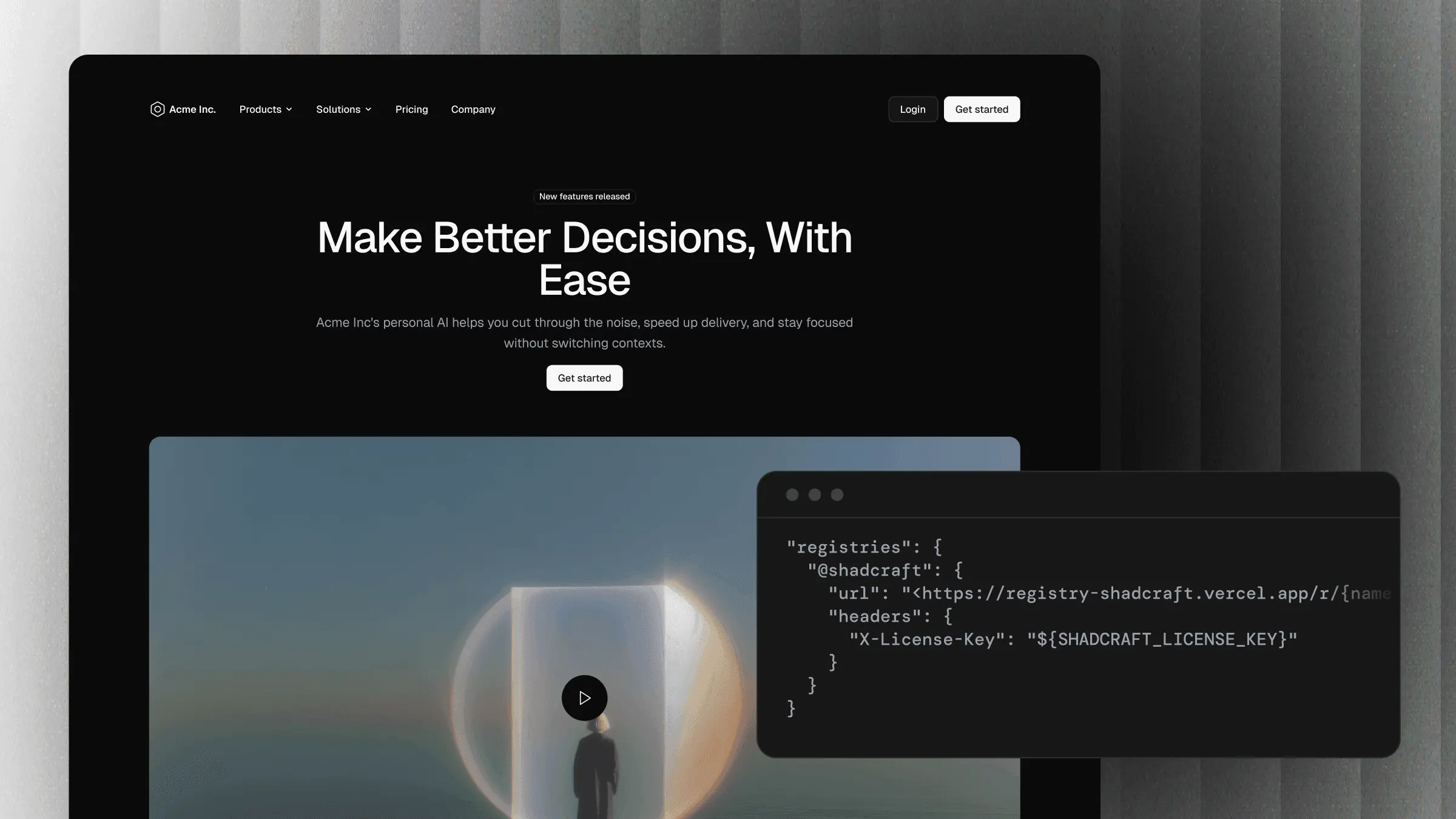
For example, you can ask an AI assistant to "Build a full landing page for an AI Resume Builder SaaS using components from the shadcncraft registry".
This guide shows a step-by-step workflow for building a full landing page using the shadcncraft Pro React Kit, the shadcncraft registry, and an MCP-enabled client like Cursor or Claude Code. It mirrors the same test setup we used to generate the AI Resume Builder example in minutes.
Step 1: Start a new Next.js or Vite project
shadcncraft Pro React was designed to be framework agnostic, which means it works in any modern React environment.
A typical setup using Next.js looks like:
$ pnpm dlx create-next-app@latest my-site $ cd my-site
Your project must have shadcn-ui installed, and a valid components.json file.
$ pnpm dlx shadcn@latest init
For framework specific installation, read the official shadcn installation guide.
Step 2: Connect your project to the shadcncraft registry
Before the MCP server can pull components for you, your project needs to know where the shadcncraft registry is and how to authenticate. Don’t worry, you only need to set this up once, and it takes less than a minute.
All you have to do is:
- Add your license key
- Tell shadcn about the shadcncraft registry
And that’s it. Once this is in place, your AI assistant can install any shadcncraft component or block on demand. No manual setup, no copy-pasting files.
For the full install walkthrough, check out the registry installation guide.
Step 3: Configure the shadcn MCP Server
The shadcn MCP Server allows AI assistants to interact with items from registries. You can browse available components, search for specific ones, and install them directly into your project using natural language.
Alright, we know what you’re thinking: more configuration?
But this really is the final bit. And once it’s done, you can literally ask your AI agent anything about the shadcncraft registry and have it assemble full pages for you from a single prompt.
To get it running, follow the official shadcn docs for your preferred client. Below are the quick-start steps for Cursor and Claude Code:
Cursor
Run the following command in your project:
$ pnpm dlx shadcn@latest mcp init --client cursor
Then open Cursor Settings and enable the shadcn MCP server.
Claude Code
Run the following command in your project:
$ pnpm dlx shadcn@latest mcp init --client claude
Then simply restart Claude Code to load the server.
Step 4: Ask your Agent to scaffold the entire page
This is where the workflow becomes ridiculously fast. Once your project and MCP server are connected, you can literally throw a single prompt at your AI agent and watch it assemble an entire landing page from real shadcncraft components: hero, pricing, FAQs, footer… the whole thing.
Just describe what you want. That’s it.
Prompt example:
Build a full landing page for an AI Resume Builder SaaS using components from the shadcncraft registry. Make sure to include at least a top navigation, hero, features, testimonial, pricing, FAQs and a footer section.
Your MCP-enabled agent will automatically pull in:
- A top navigation block
- A header (hero) block
- A features / benefits block
- A testimonial block
- A pricing block
- A FAQs section
- A footer
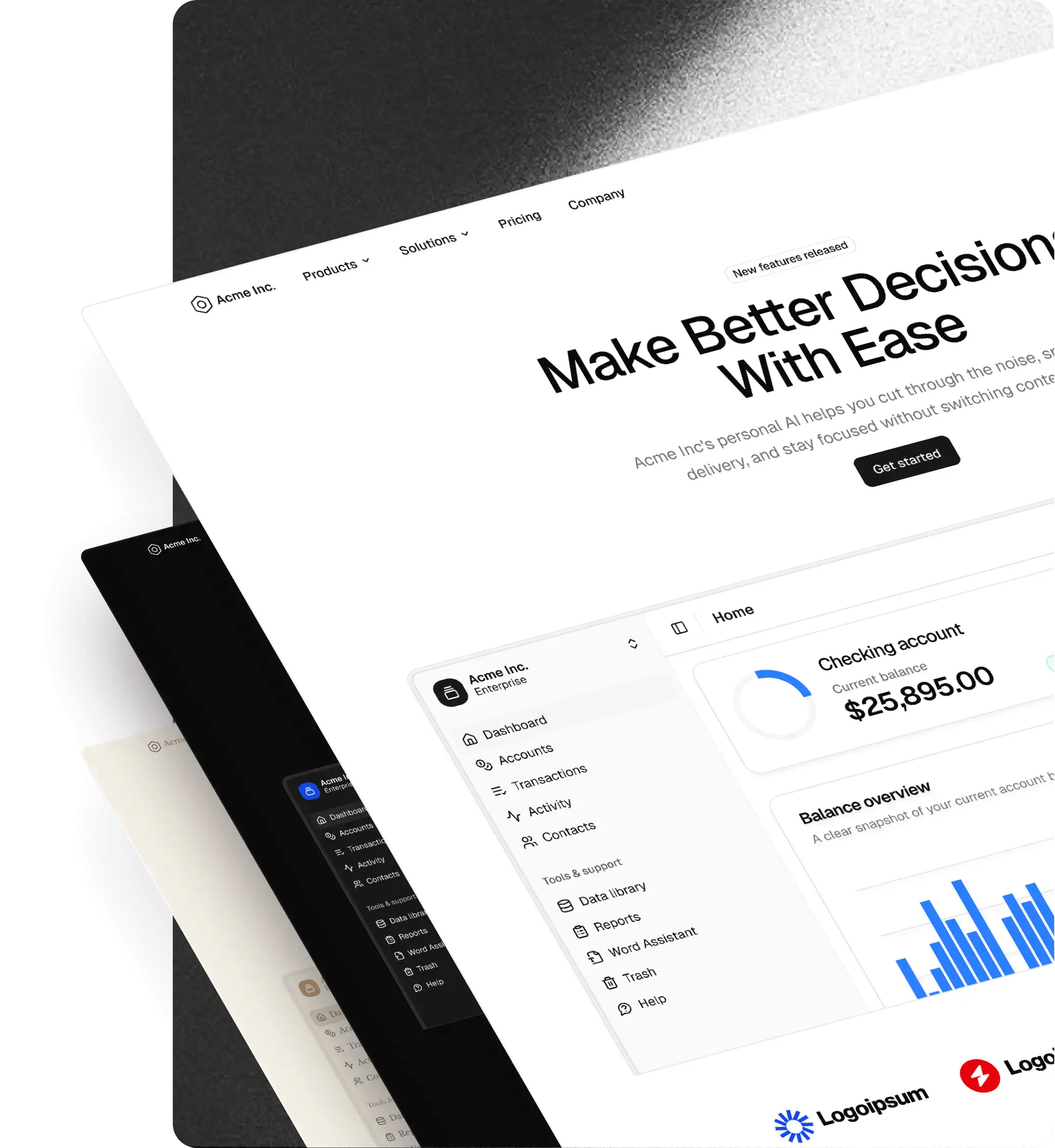
All responsive, all aligned with your theme, and all using real production-ready shadcncraft Pro React components.
Depending on the model you’re using, it may even go ahead and add proper sections for CTAS or metrics highlights automatically.
This is the moment you go from an empty file to a fully structured landing page in minutes — and iterating on it becomes as simple as throwing another prompt.
Step 5: Refine the structure using natural prompts
Now that your layout exists, you can tweak it like you would talk to a designer sitting next to you. Because everything in the shadcncraft registry is well-defined and predictable, you can use natural language to make adjustments that just work.
And since the React Pro Kit mirrors the Figma version one-to-one, you can reference specific blocks by name.
Examples:
Use Top Navigation 3 instead
Swap the pricing section for Pricing 3
Add another feature section under the testimonial
Change the FAQs block to FAQs 2
Add a CTA to the bottom
Increase the max width of the sections to
[desired_width]
Since shadcn MCP server fully understands the shadcncraft registry, it knows which components exist, resolves imports, and rewrites JSX automatically.
Step 6 (Optional): Apply a tweakcn theme
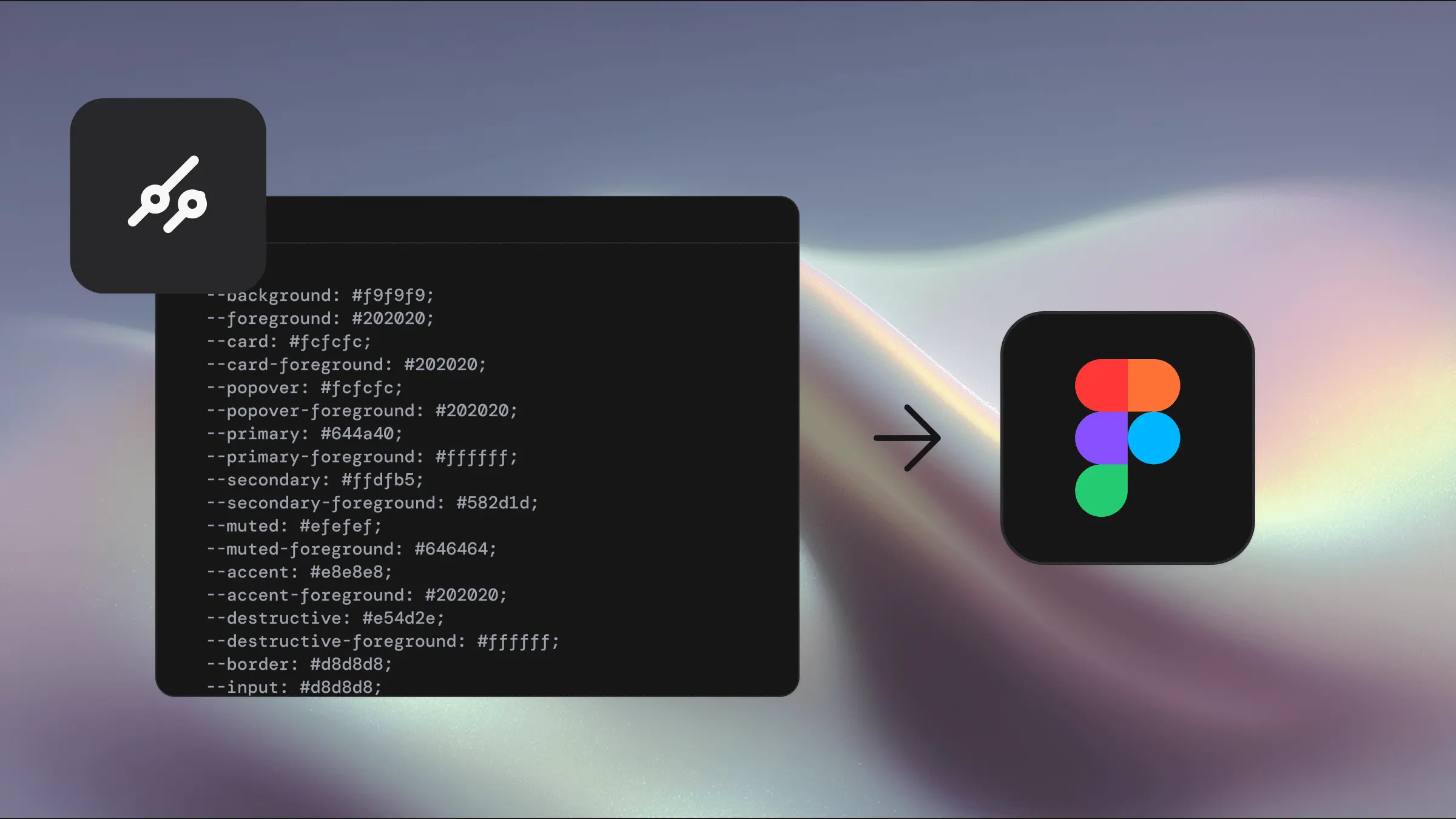
shadcncraft uses the same token system across Figma and React, so themes from tweakcn drop in instantly.
There are multiple ways to install a theme, but the quickest is with the shadcn CLI:
$ pnpm dlx shadcn@latest add https://tweakcn.com/r/themes/twitter.json
You can also give this URL to your AI Agent and let it apply the theme, but that may require extra permissions to read and fetch files. For a quick, reliable setup, the CLI is recommended.
Step 7 (Optional): Add smooth animations with motion
shadcncraft blocks were intentionally built with clean structure and predictable nesting, which means animation libraries (like motion) slot in effortlessly. This also makes it easier for AI agents to understand where animations should go.
You can prompt your AI agent with:
Add motion for smooth animations
It will typically wrap the right elements, add transitions, and keep the overall structure intact. You can always fine-tune afterward.
We recommend using Gemini 3 Pro or Opus 4.6 for animation tasks. We noticed it tends to produce clean, production-ready results without breaking component structure.
Why this workflow works so well
Designed for AI
The Pro React Kit uses predictable naming, consistent props, clean style tokens aligned with shadcn/ui, and AI-friendly structure that MCP tools can reason about reliably.
Real visual parity
Every block and component maps directly to its Figma equivalent.
Fast layout assembly
MCP can snap sections together instantly using the registry which means layout composition becomes prompt-driven.
Instant theming
Themes from tweakcn apply out of the box no mapping tokens, no manual overrides. Just install and your entire UI updates instantly.
Built for flexible animation
shadcncraft blocks use clean, predictable structure, so animation libraries like motion can be added with zero friction. Wrap what you need, apply transitions, and everything stays stable and easy to modify for devs and AI agents.
Works everywhere
The shadcncraft registry is React-framework agnostic by default, and the shadcn MCP server integrates seamlessly with Cursor, Claude Code, and more.
No matter what tools you’re using, the workflow is identical.