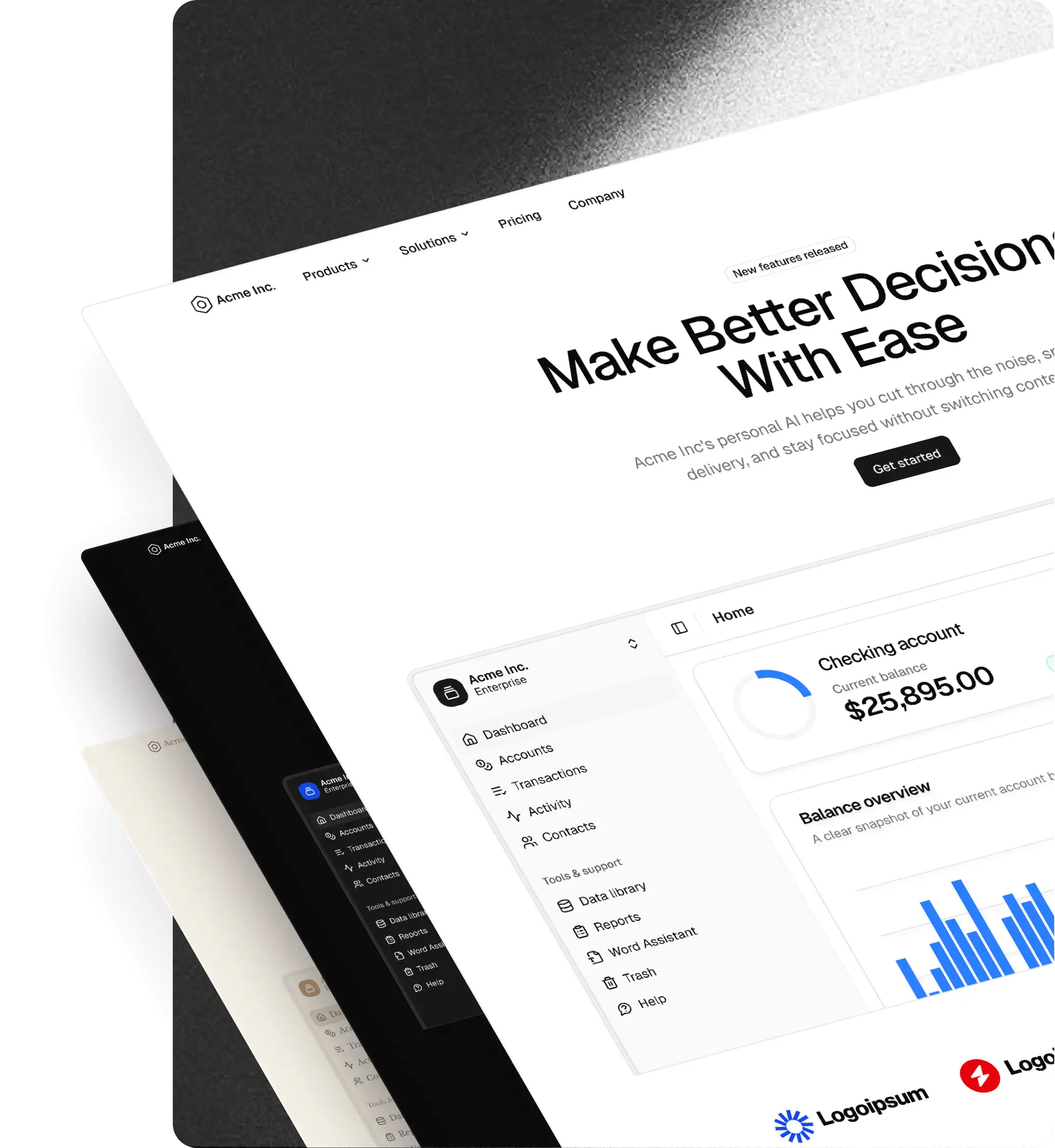
Instant Theming with shadcncraft
Apply themes instantly across the shadcncraft design system. Learn how to switch themes and preview UI changes across your entire interface.
All theming now happens inside the shadcn theme import & export Figma plugin, keeping your Figma variables aligned with shadcn/ui projects and Tailwind v4.
Supported actions
- Import themes from tweakcn, shadcn create, or CSS code
- Export current variables to global css
Theme with tweakcn

Applying a tweakcn theme
Open your shadcncraftft library file in Figma
- Run the shadcn theme import & export plugin
- Select Import theme
- Choose tweakcn as the source
- Do one of the following:
- Select a preset theme from the list
- Paste a custom tweakcn theme URL
- Click Apply
This creates a new mode inside the theme collection and applies it across the document. Existing themes are not overwritten.
How to get a tweakcn theme URL
- Go to tweakcn.com
- Create or edit a theme
- Click "Save" in the top-right
- Go to your profile and copy the saved theme URL
- Paste this URL into the shadcncraft plugin import field
This URL contains all color, radius, and token values.
Theme with shadcn Create

Applying a shadcn theme
Open your shadcncraft library file in Figma
- Run the shadcn theme import & export plugin
- Select Import theme
- Choose shadcn as the source
- Do one of the following:
- Select a preset configuration
- Paste a custom shadcn Create URL
- Click Apply
A new mode is created in the theme collection and applied to the entire document without affecting existing themes.
How to get a shadcn Create URL
- Go to https://ui.shadcn.com/create
- Configure your project:
- Colors
- Radius
- Fonts
- Style preferences
- Click share to copy the full URL
- Paste this URL into the shadcncraft plugin import field
The plugin reads the configuration directly from the URL.
Theme with CSS

- Open your shadcncraft library file in Figma
- Run the shadcn theme import & export plugin
- Select Import theme
- Choose
globals.cssas the source - Enter mode/theme name
- Paste your CSS code into the input field
- Click Apply
The CSS is parsed and mapped to shadcncraft variables, creating a new mode while keeping existing themes intact.
Export theme to CSS
- Open your shadcncraft library file in Figma
- Run the shadcn theme import & export plugin
- Set how your CSS should be generated:
- Theme mode: Select the mode you want to export (for example Light, Dark, Brand)
- Tailwind version: Choose the Tailwind version (Tailwind v4 by default)
- Color output: Select the color format (for example
oklch)
- Toggle the parts of the theme you want in the export:
- Light mode
- Dark mode
- Sidebar colors
- Chart colors
- Radius
- Font family
- Shadows
- Click Export CSS
- shadcncraft generates a production-ready
globals.css
Get a preview
Use the theme preview to the right to get a handy snapshot of your theme across the entire library as you theme.
Adding or editing variables
Theming may not break if you add new variables, but if you rename existing ones, it may cause theming issues.
The export output is
- Compatible with shadcn/ui
- Compatible with Tailwind v4
- Based on the exact current variable values in Figma
You can copy the CSS directly or download it for use in your project.